Company LogovNomad

Description
How to Open a New Virtual Map (example)
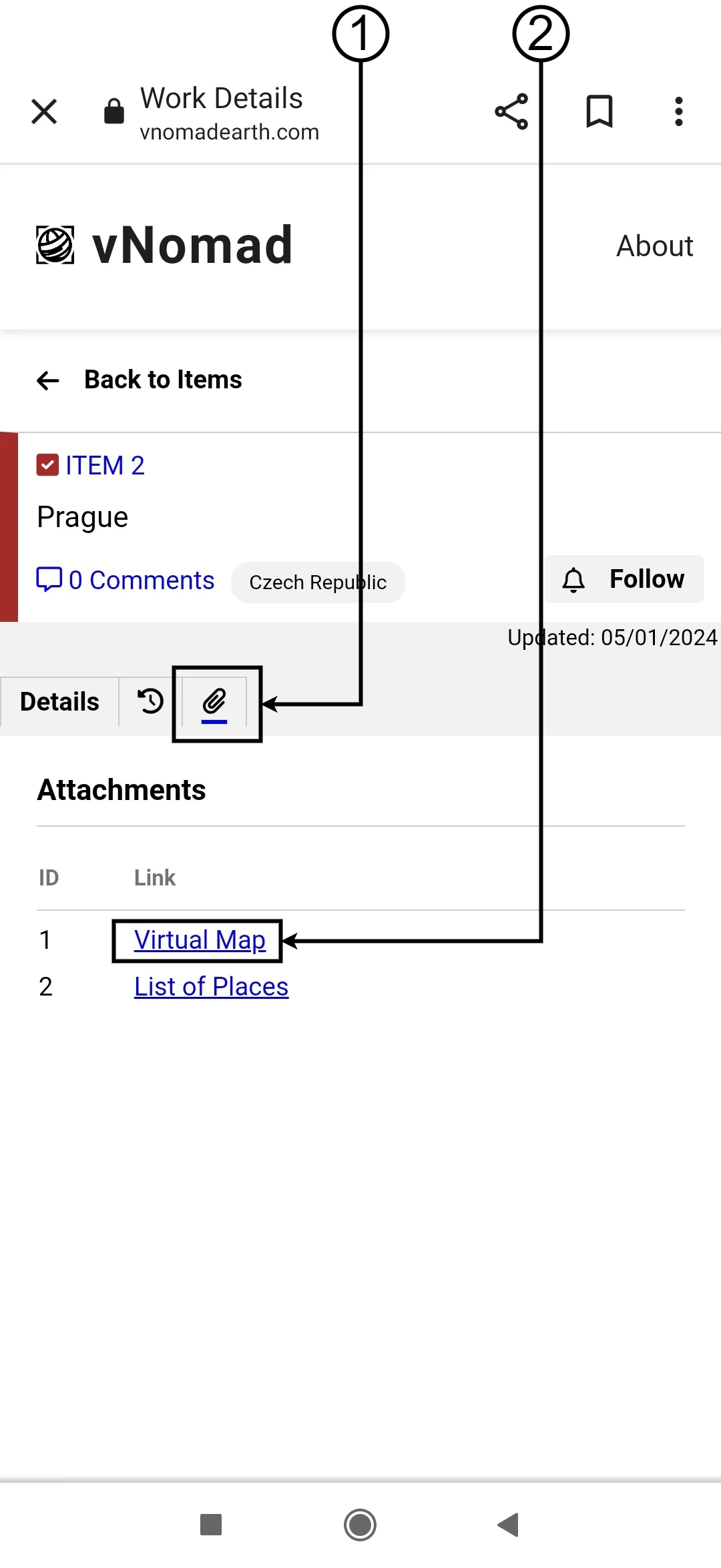
1. Click on 📎 to view the attachments.
2. Then click on Virtual Map.

If you have opened the website via Google Chrome on your mobile device, the Virtual Map should be automatically opened in the Google Maps application.

On PC, you will go to How to Download a Virtual Map File, step 2.
Image 1
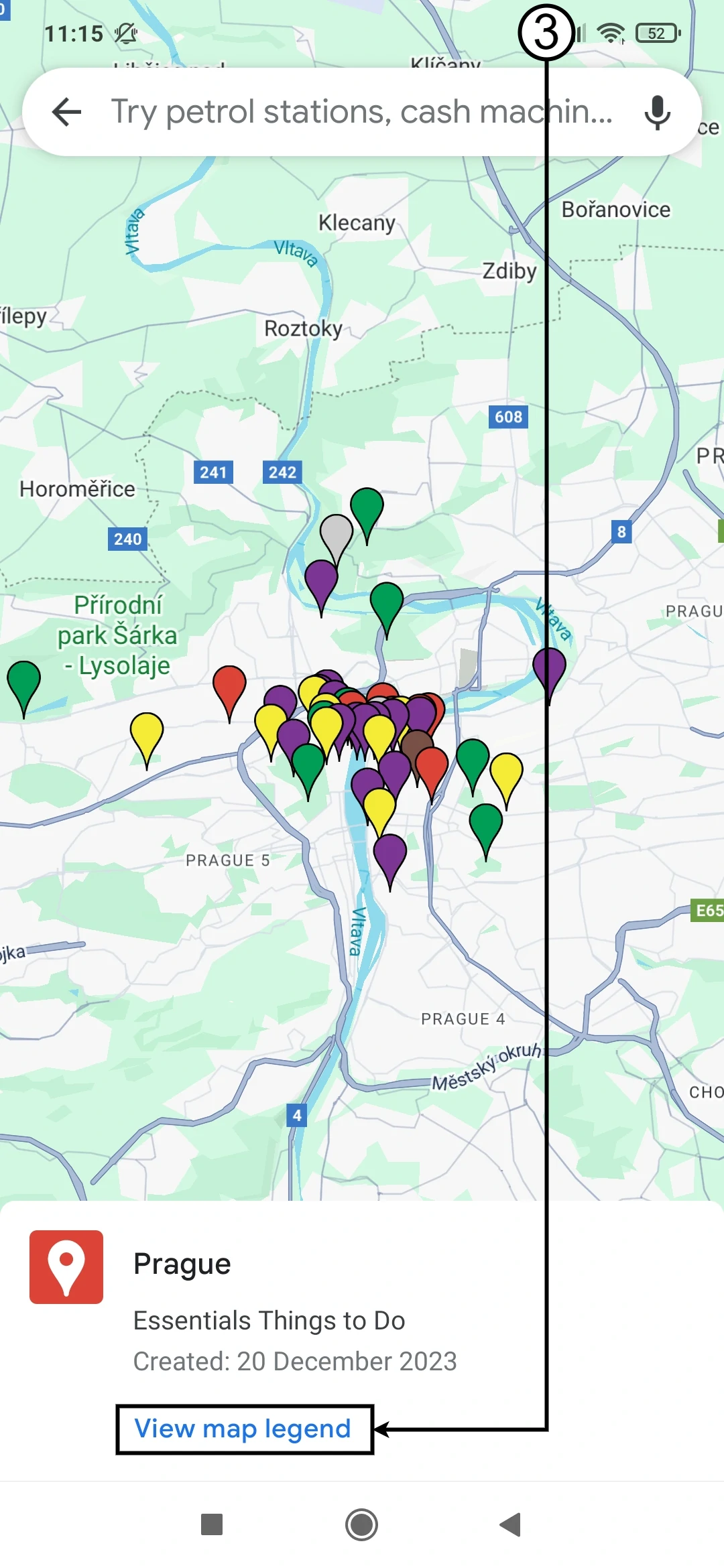
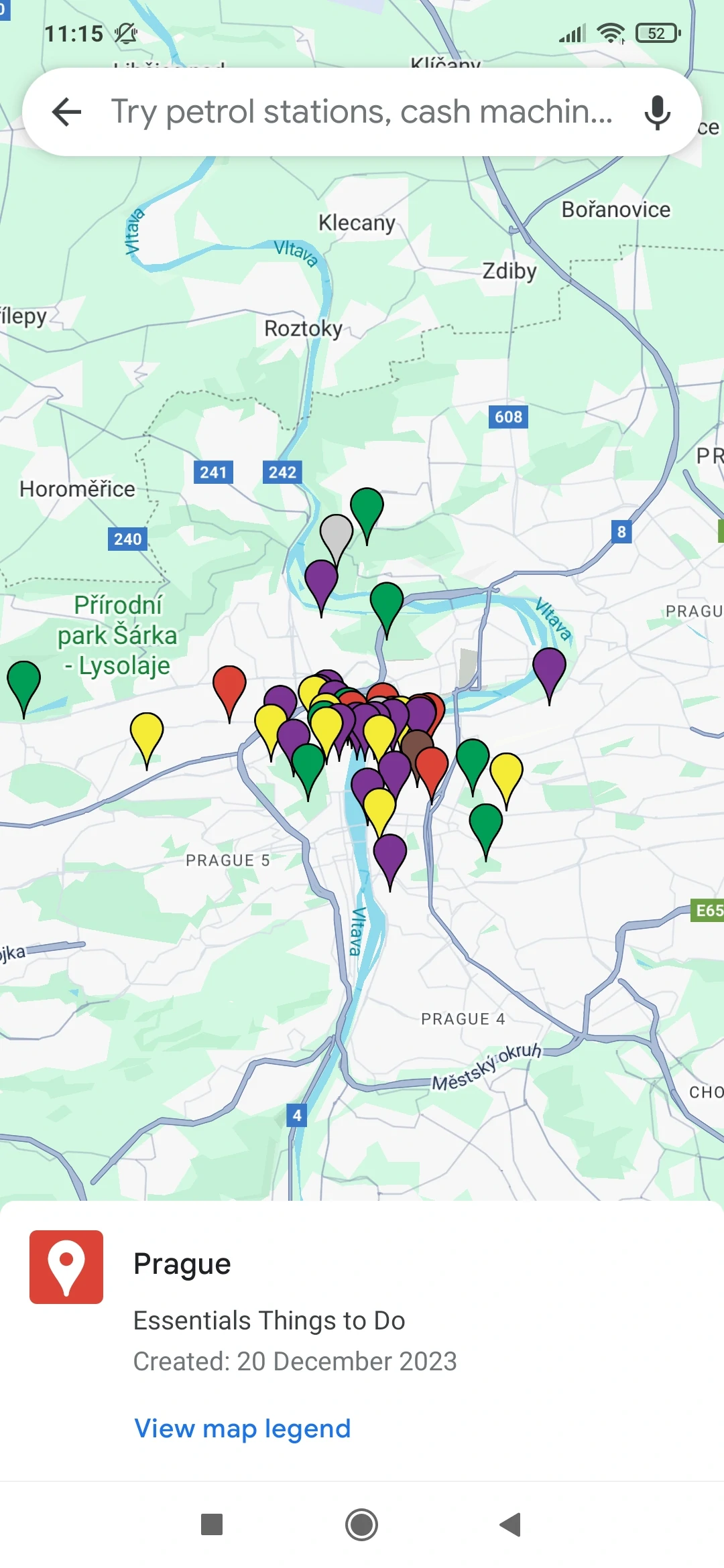
3. Click on View Map Legend to see the objects on the Virtual Map.
Image 2
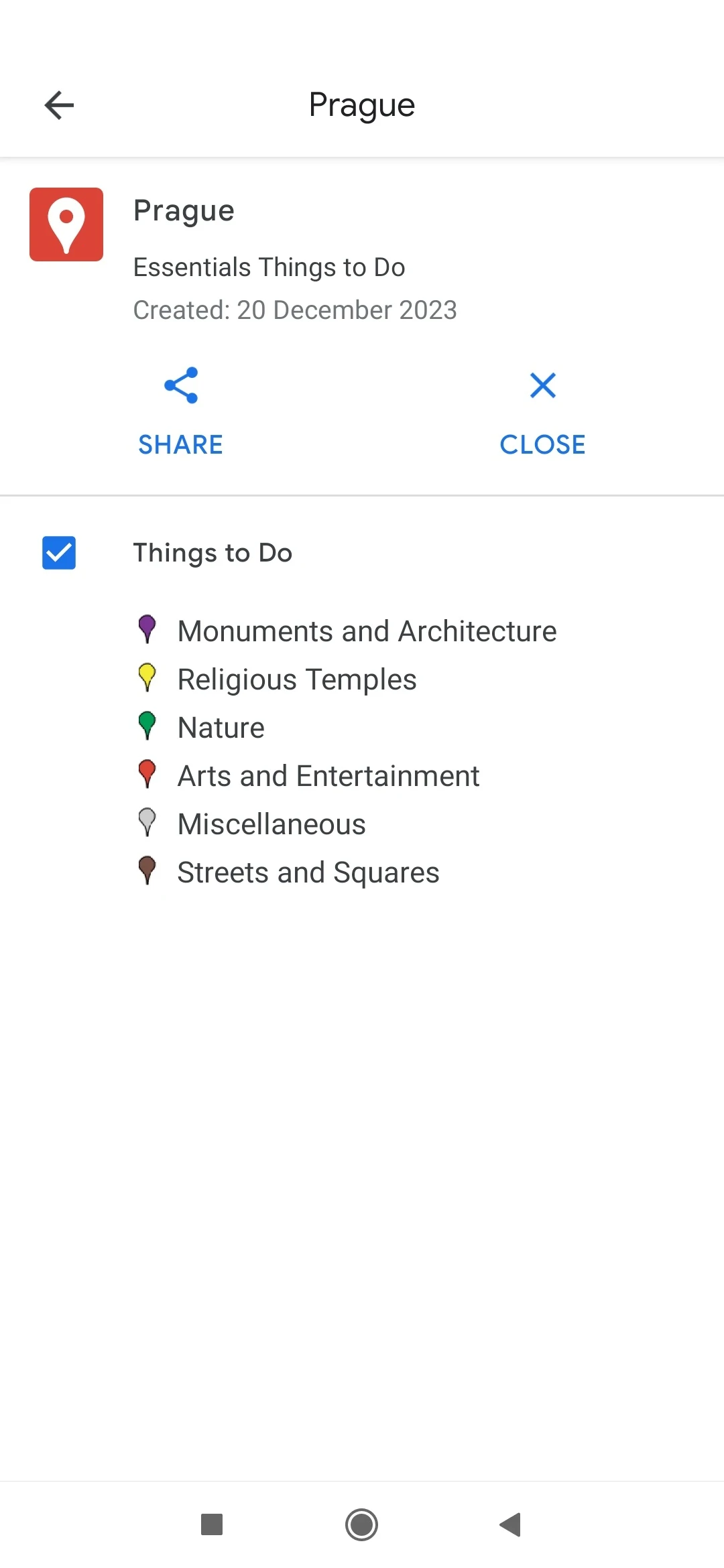
You can activate or deactivate layers on the Virtual Map using the checkboxes next to each layer.
Image 2
How to Open a Saved Virtual Map (example)
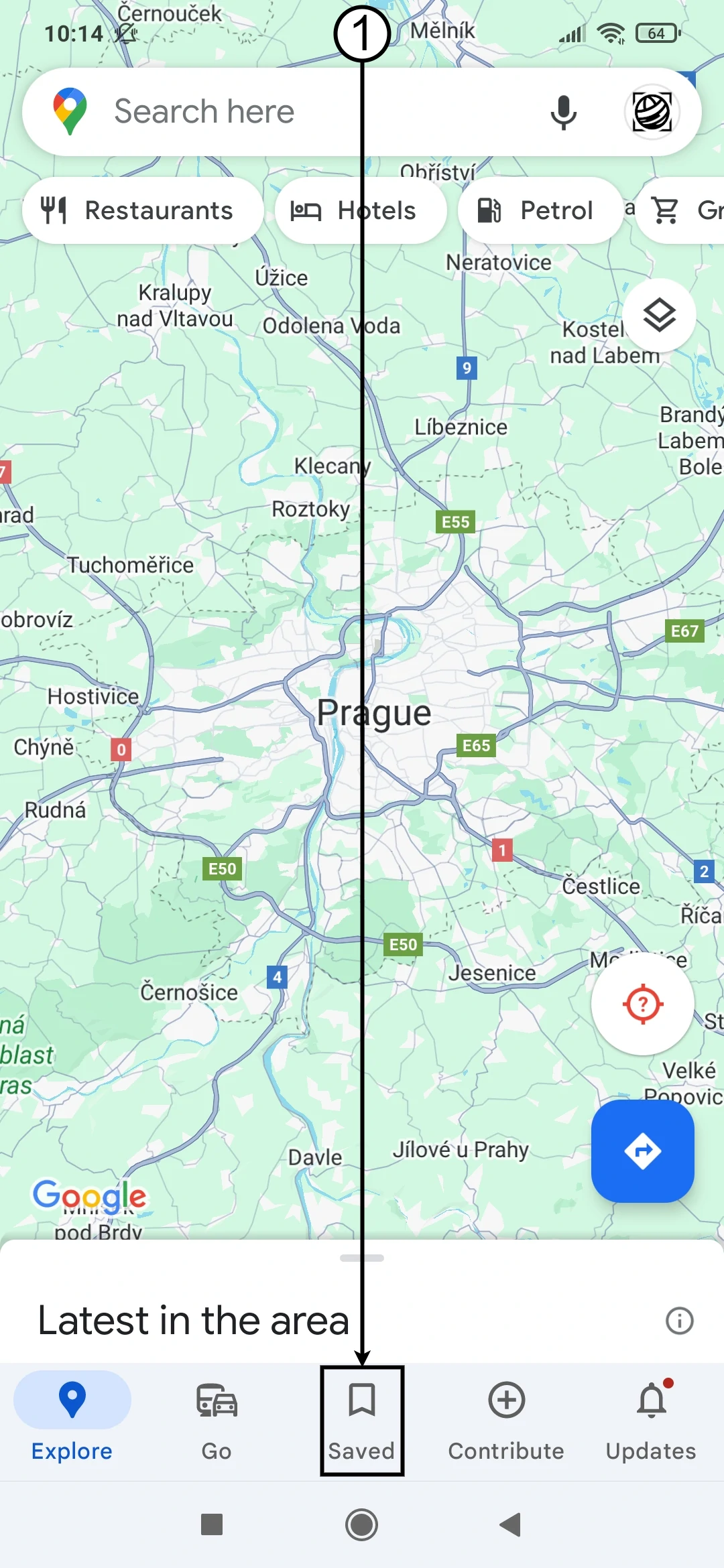
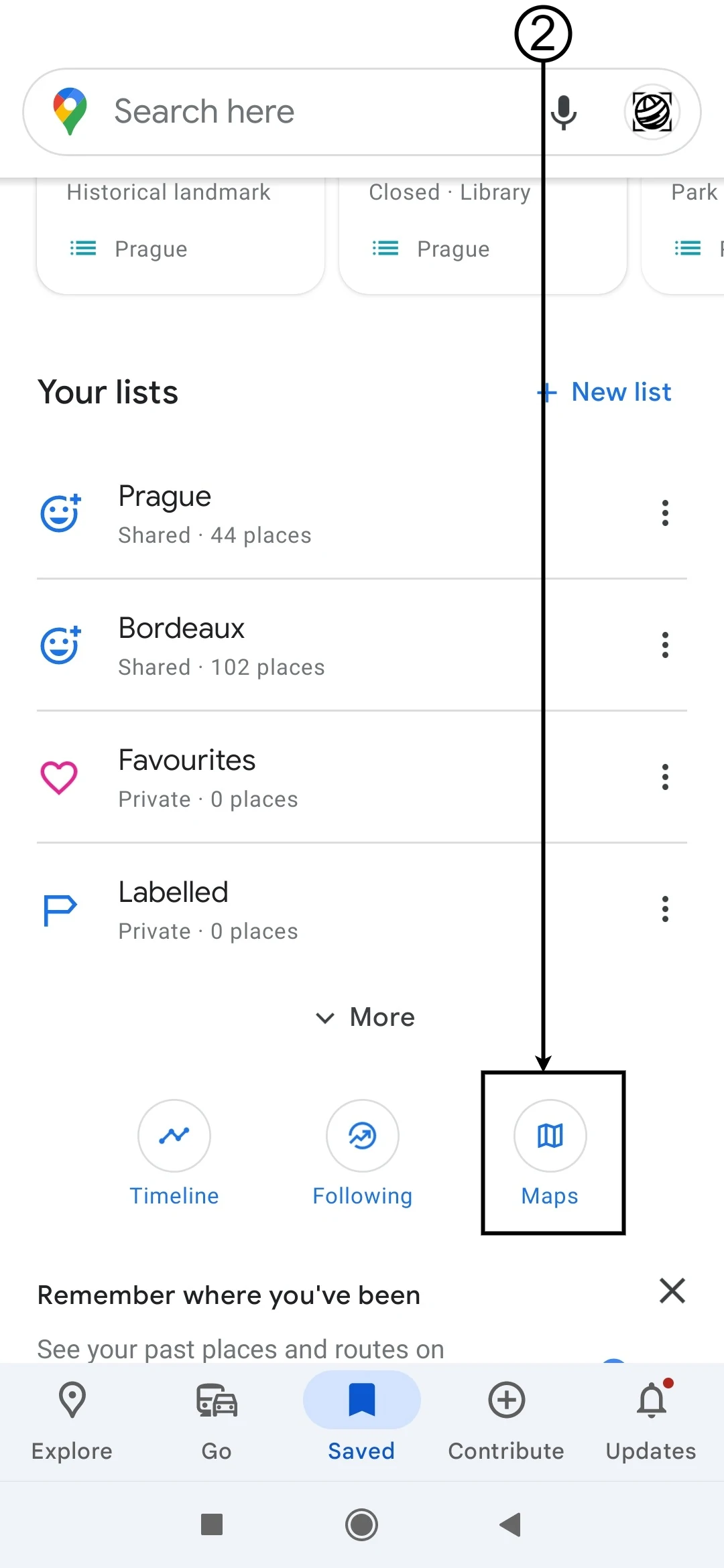
1. Open Google Maps application and click on Saved.
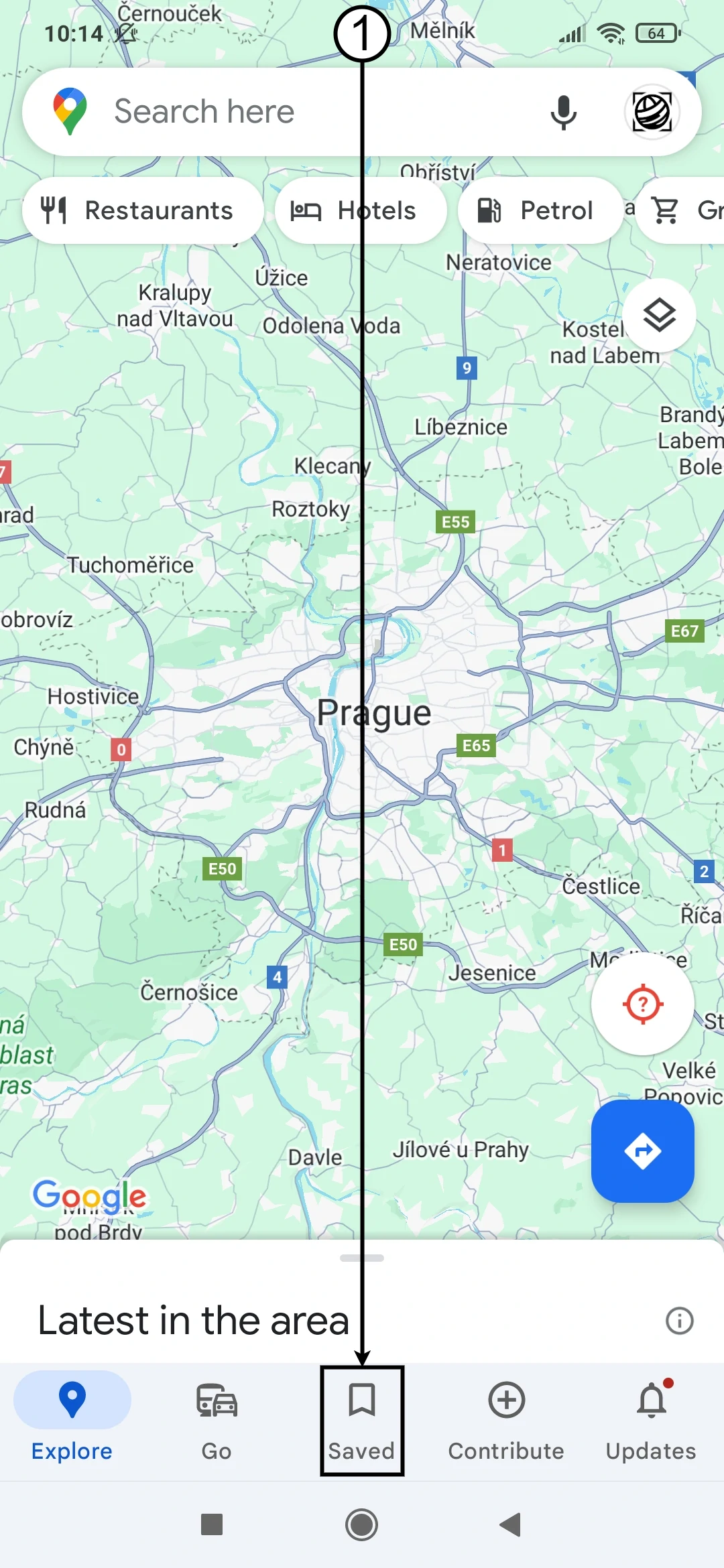
Image 4
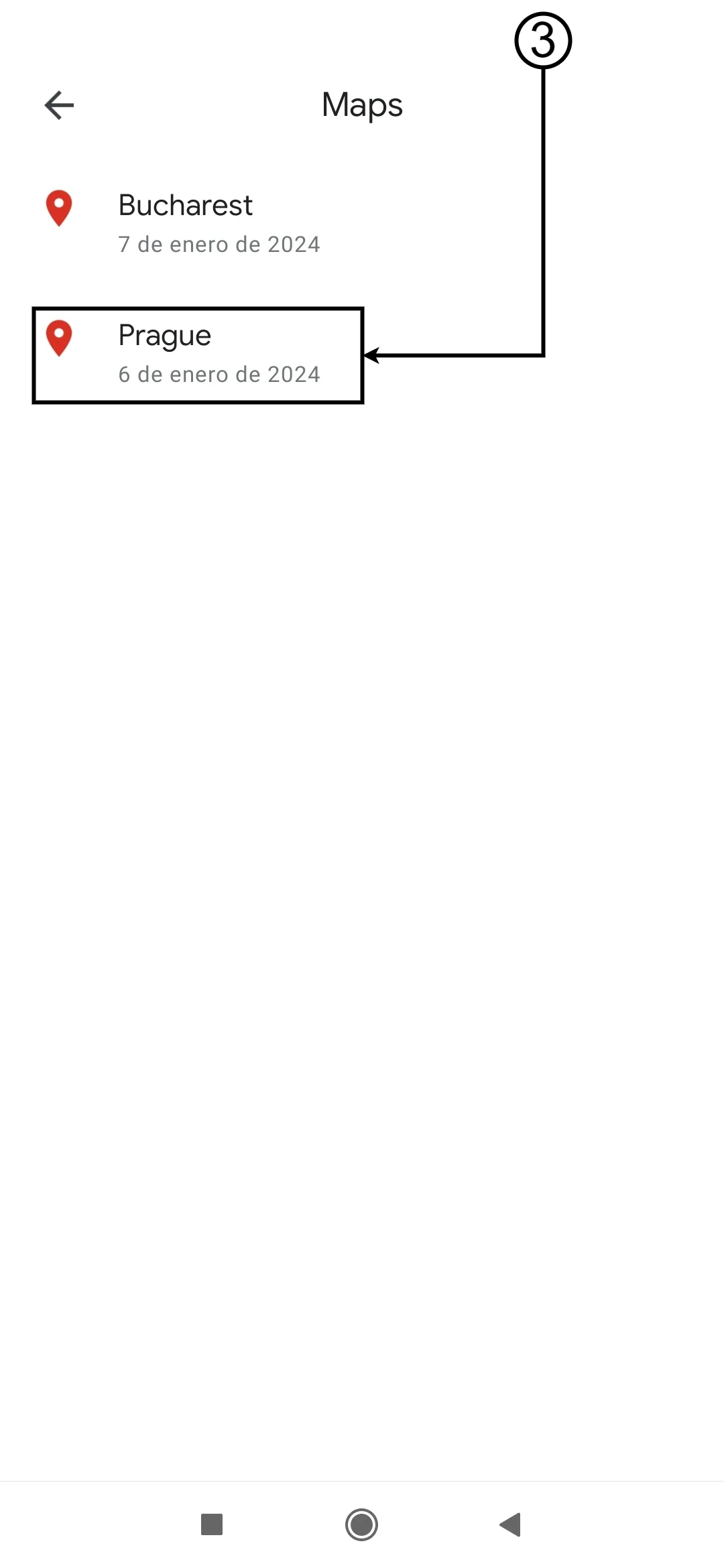
2. Then click on Maps to view the saved maps.
Image 5
3. Select the map you want to view in the Google Maps application.
Image 6
Now, you can view the map that was previously opened on the website. See How to Open a New Virtual Map.
Image 7
How to Download a Virtual Map File (example)
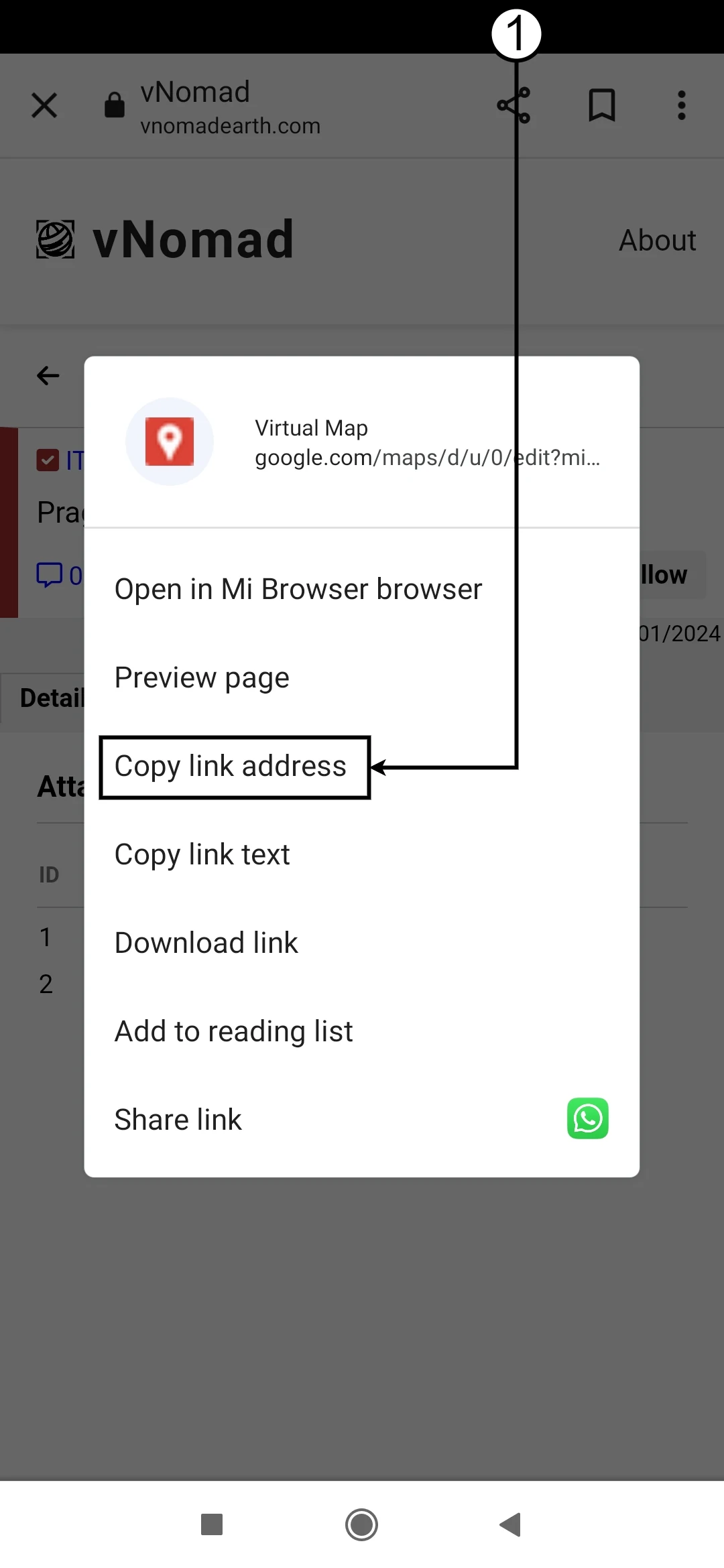
1. On a mobile phone, copy the link address of the Virtual Map and paste it into Google Chrome.

On a PC, simply click on the Virtual Map link. See How to Open a new Virtual Map.
Image 12
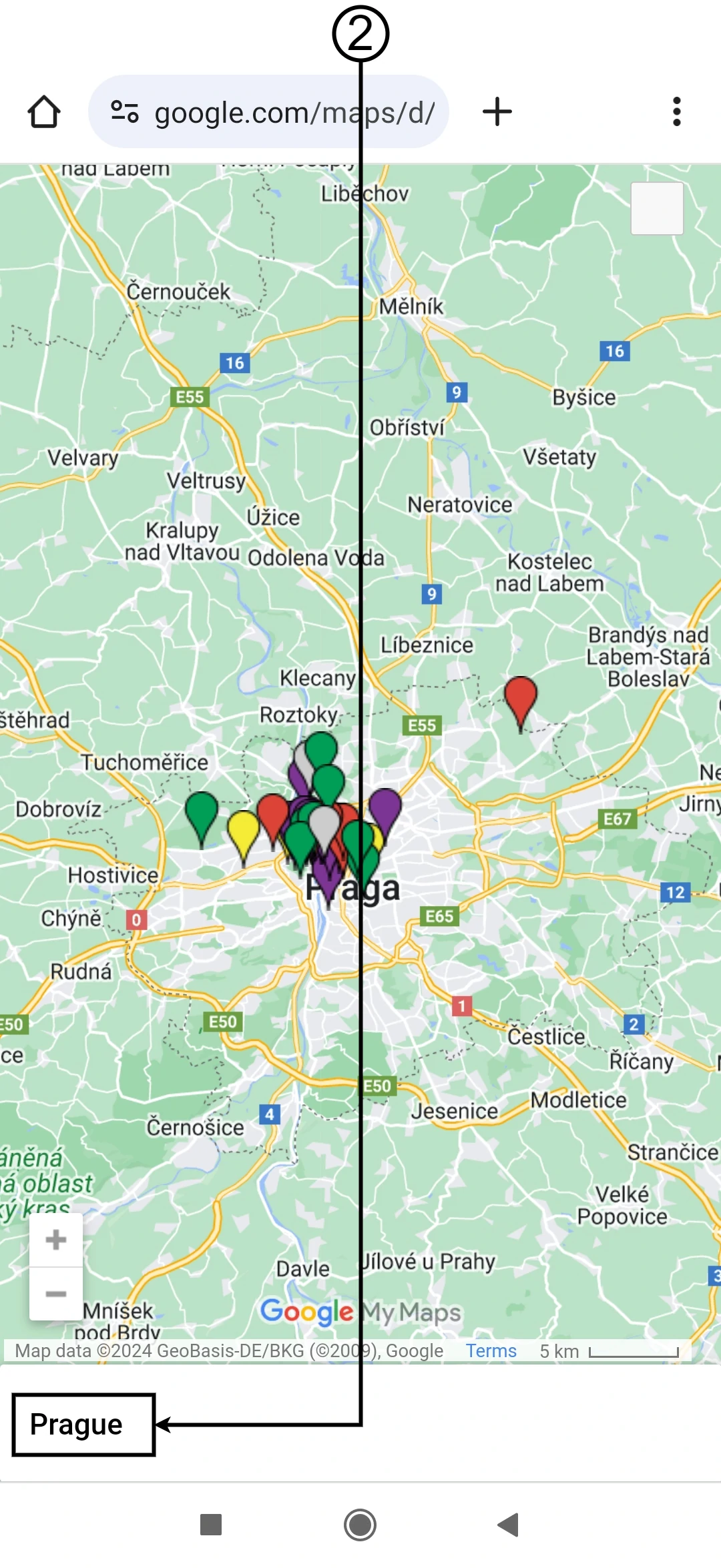
2. Next, click on the name of the Virtual Map.
Image 13
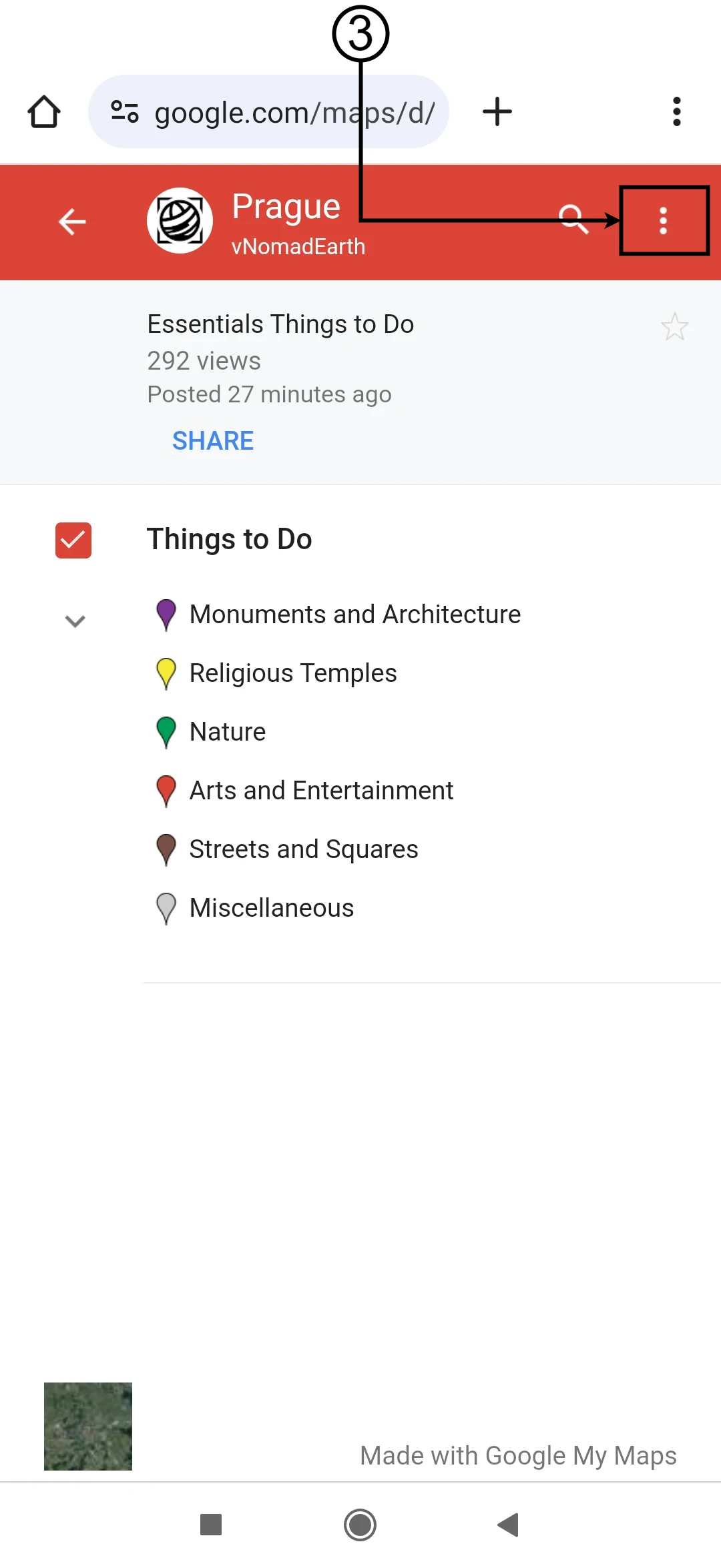
3. Navigate to the three-dot menu.
Image 14
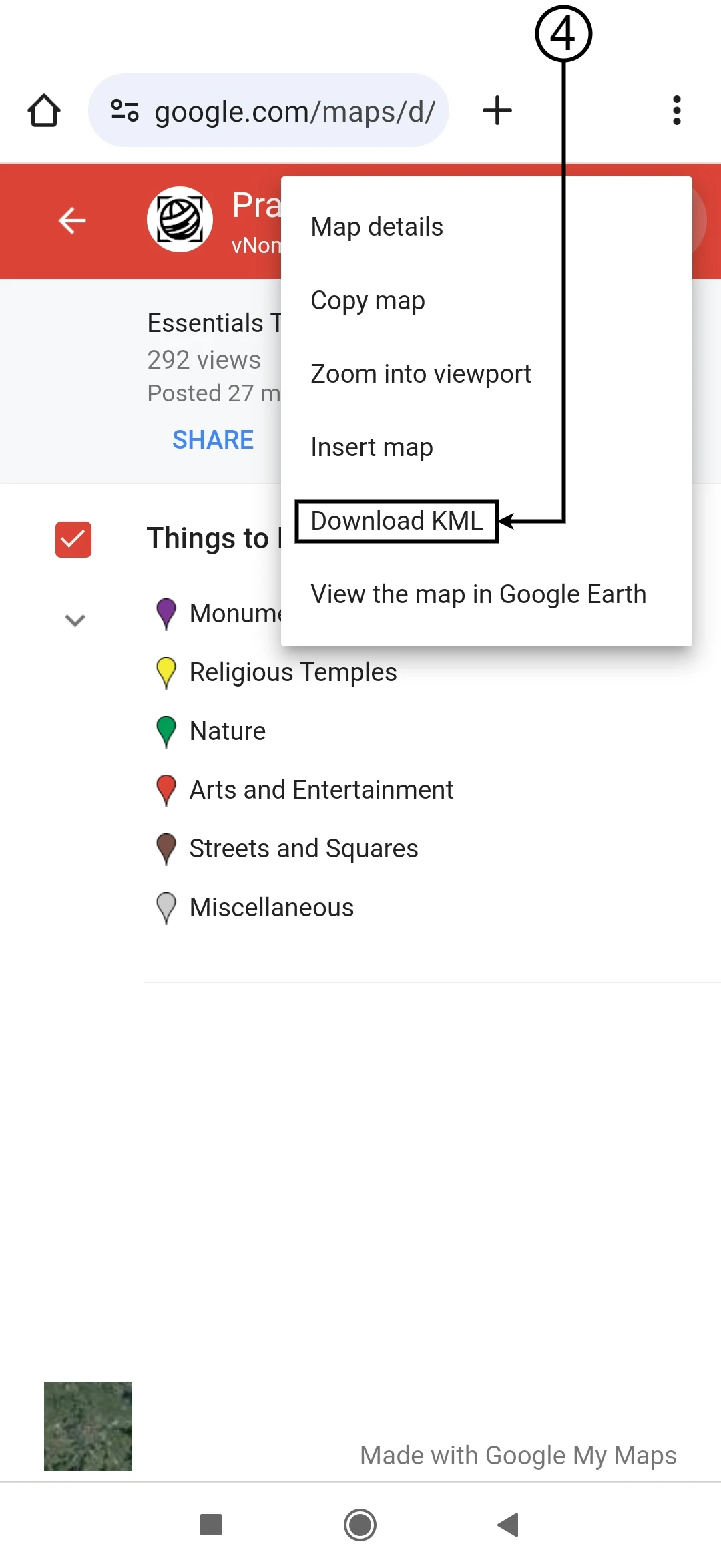
4. Click on Download KML.

Now, you will be able to open it in a different application and even customize it in Google My Maps.
Image 15
How to Open a New List of Places (example)
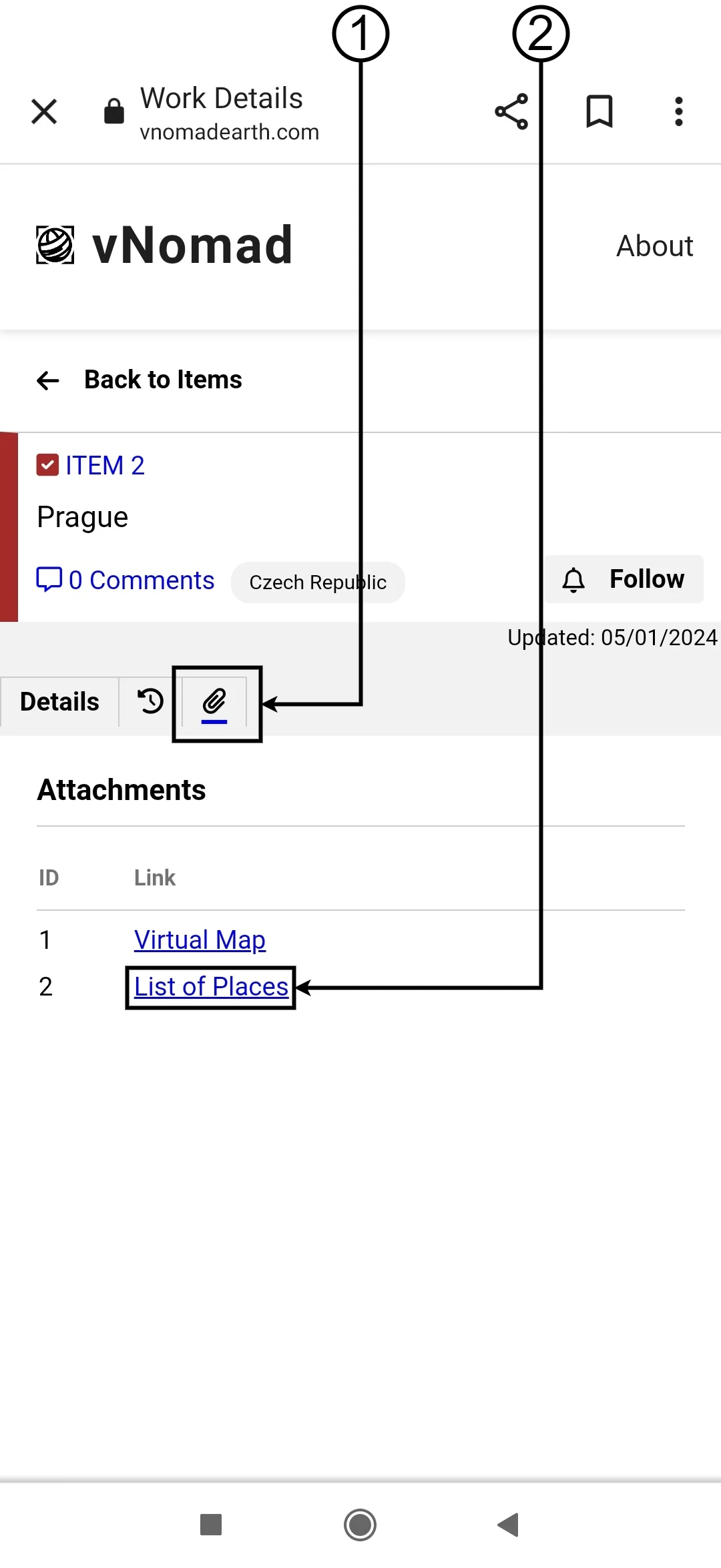
1. Click on 📎 to view the attachments.
2. Then click on List of Places.
Image 16
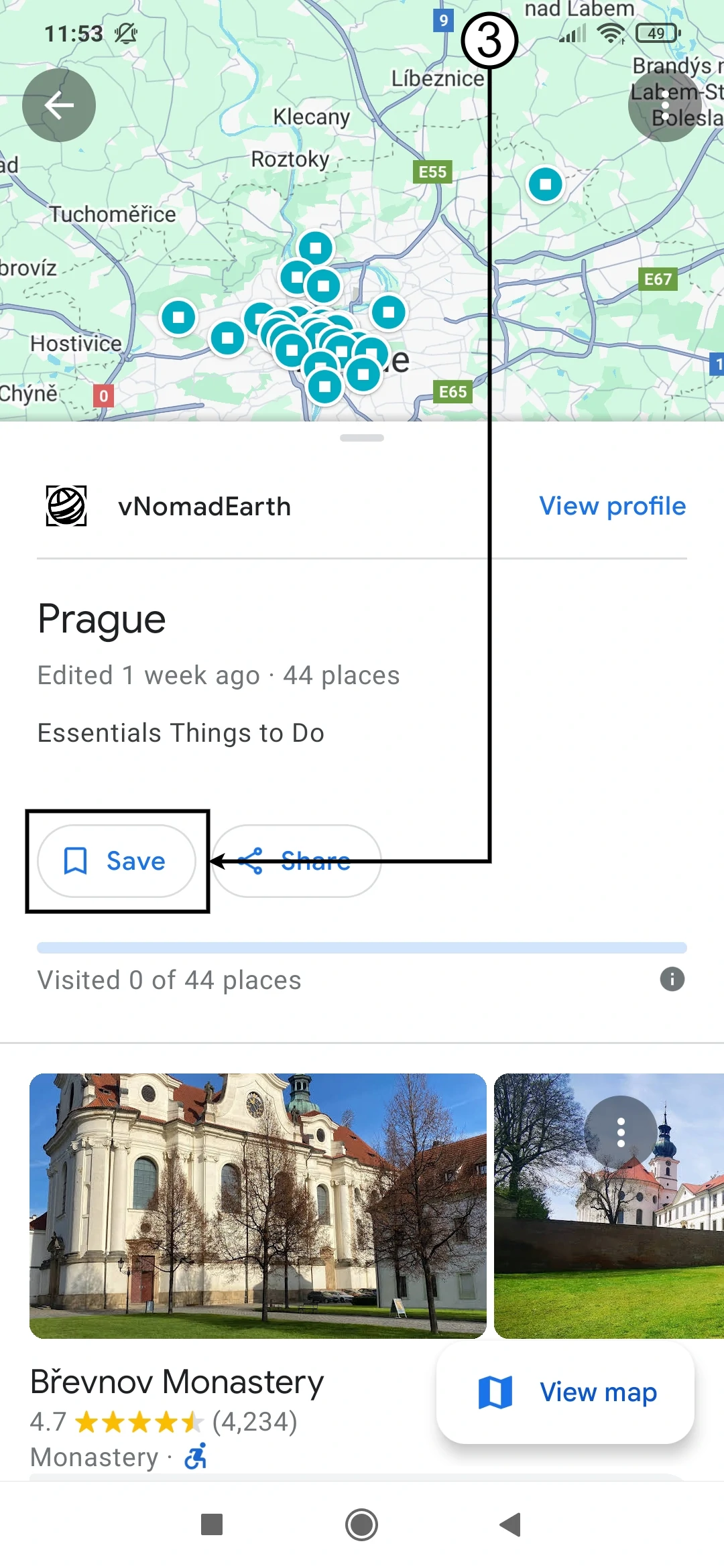
2. Click on Save to save the list.
Image 17
How to Open a Saved List of Places (example)
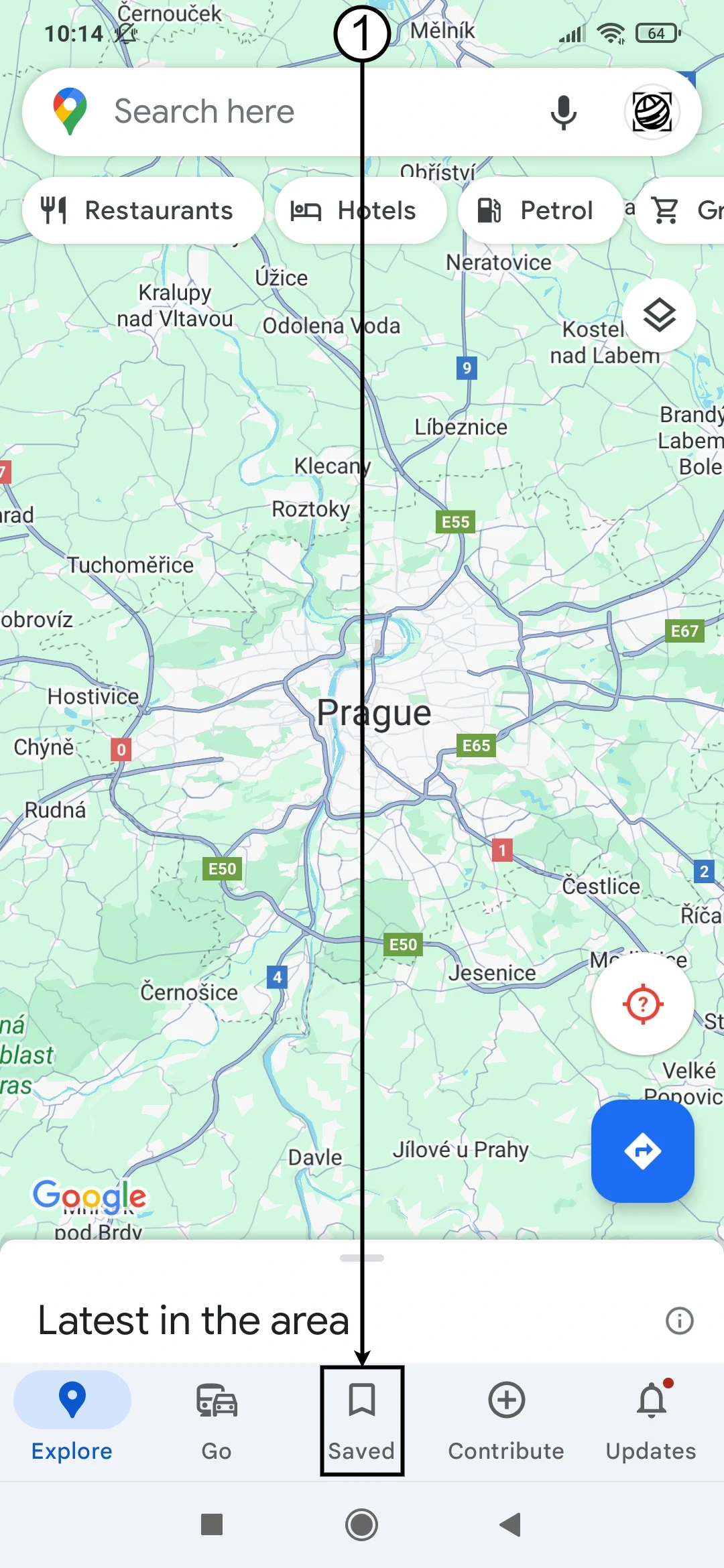
1. Open Google Maps application and click on Saved.
Image 18
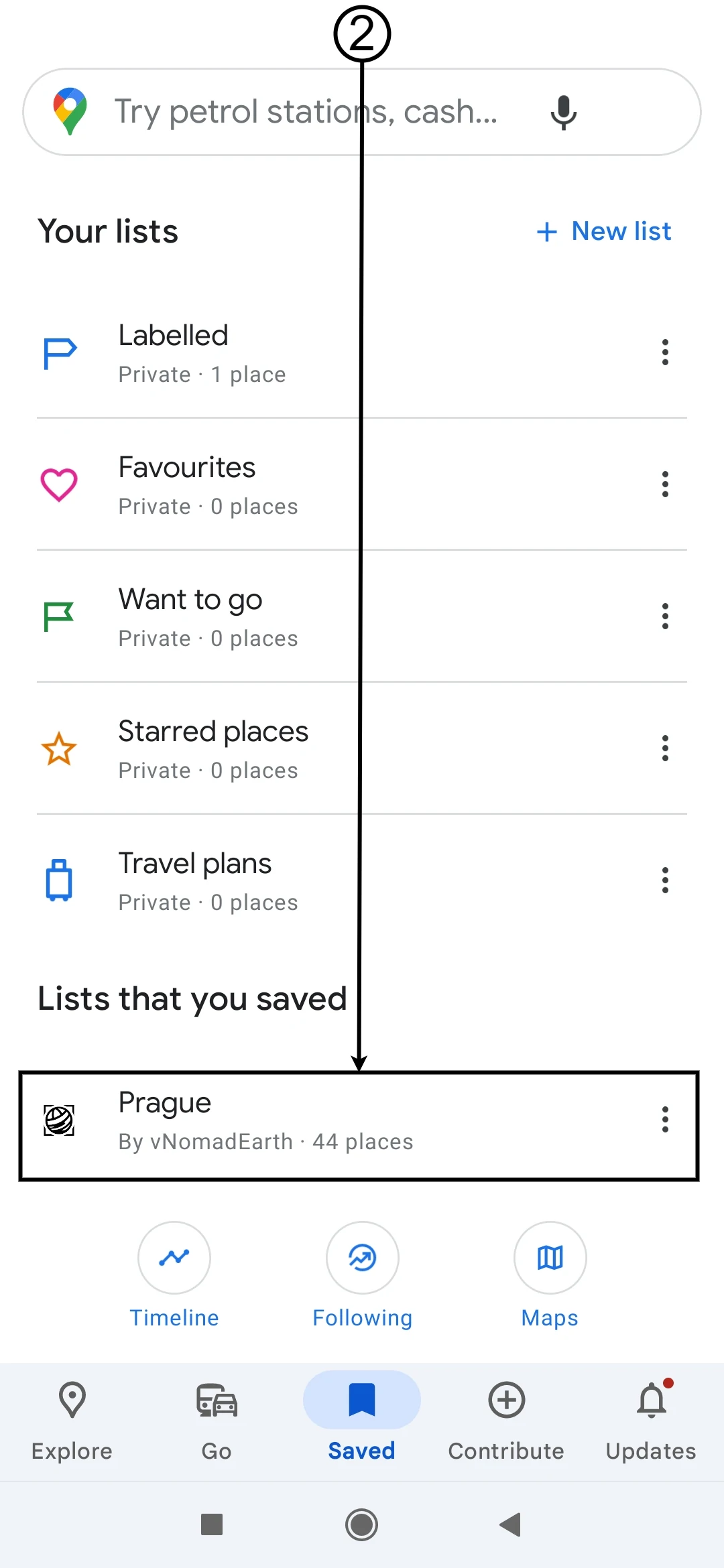
2. Select the list you want to view in the Google Maps application.
Image 19
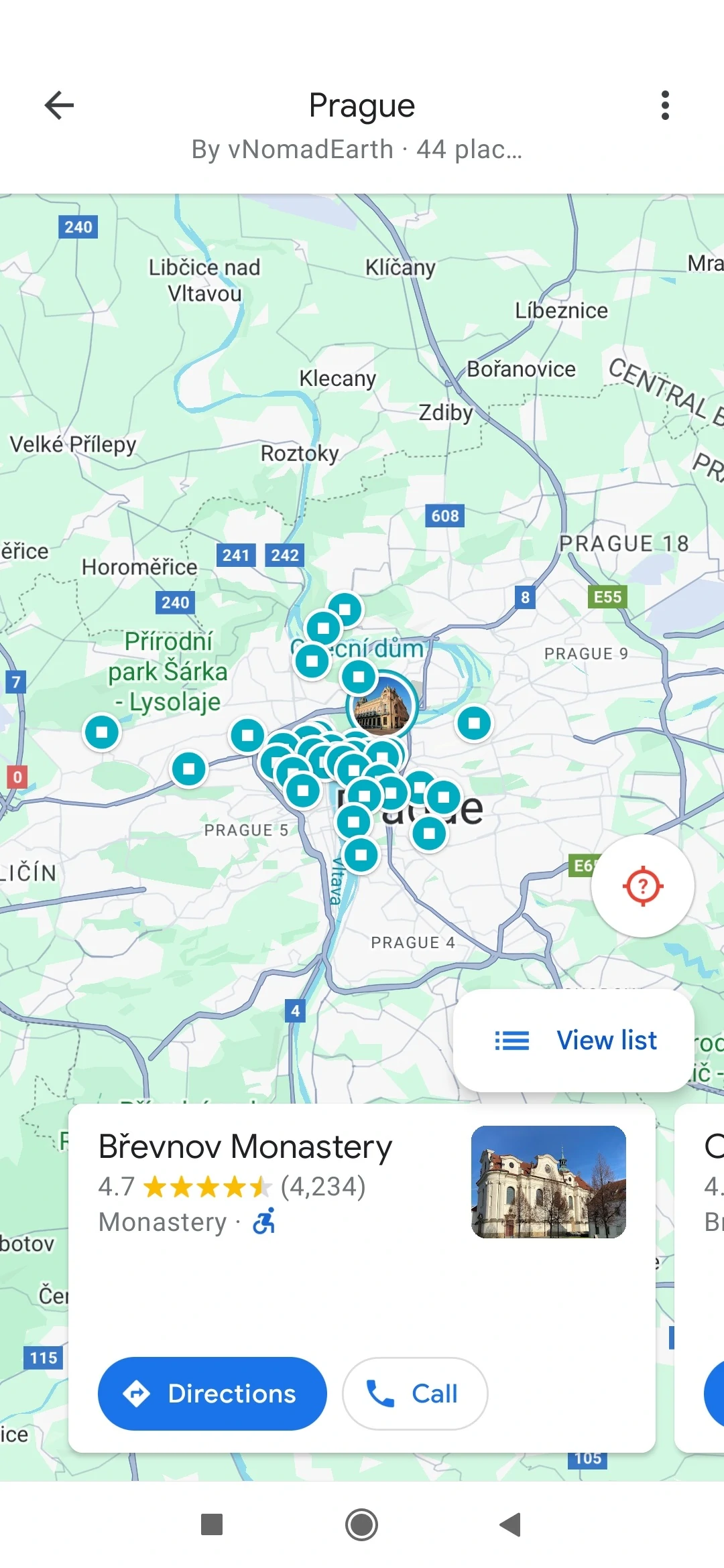
Now, you can view the list that was previously opened on the website and saved it. See How to Open a New List of Places.
Image 20
How to Get the Ultimate Virtual Map (example)
1. Open Google Maps application and click on Saved.
Image 21
2. Click on the three-dot menu of the list.
3. Then, click on Show on your map.
4. Next, click on Maps to view the saved maps.
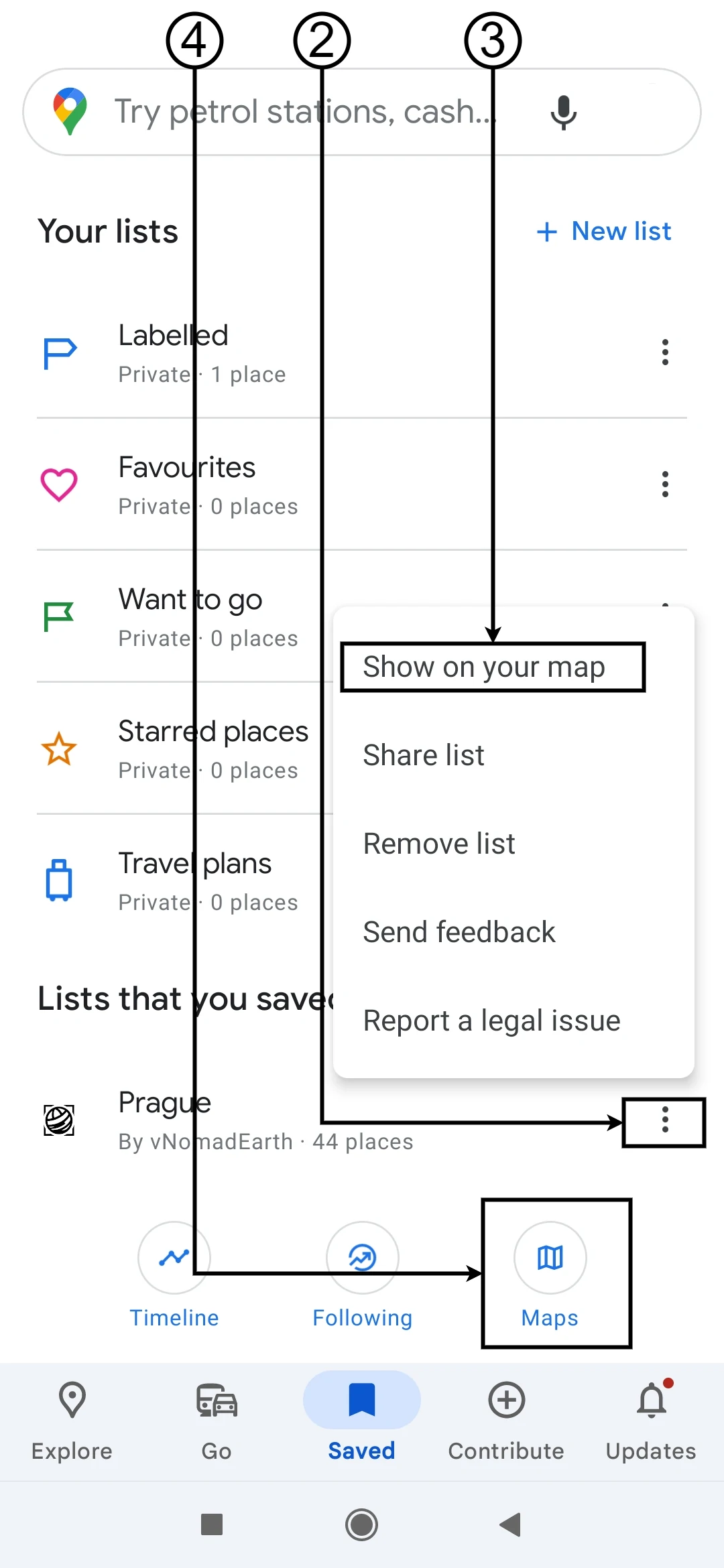
Image 22
5. Select the map you want to view in the Google Maps application.
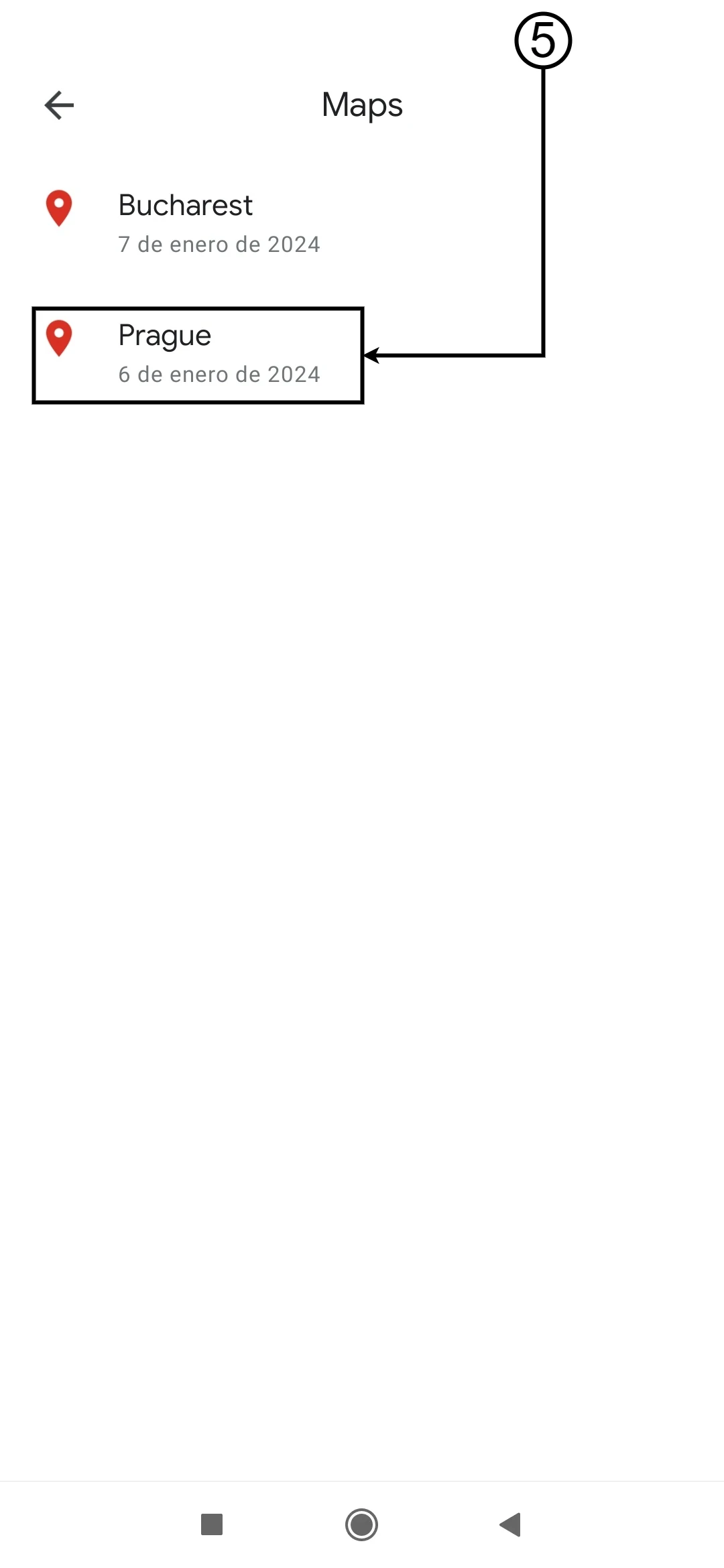
Image 23
Now, you can view the Virtual Map and the List of Places combined.
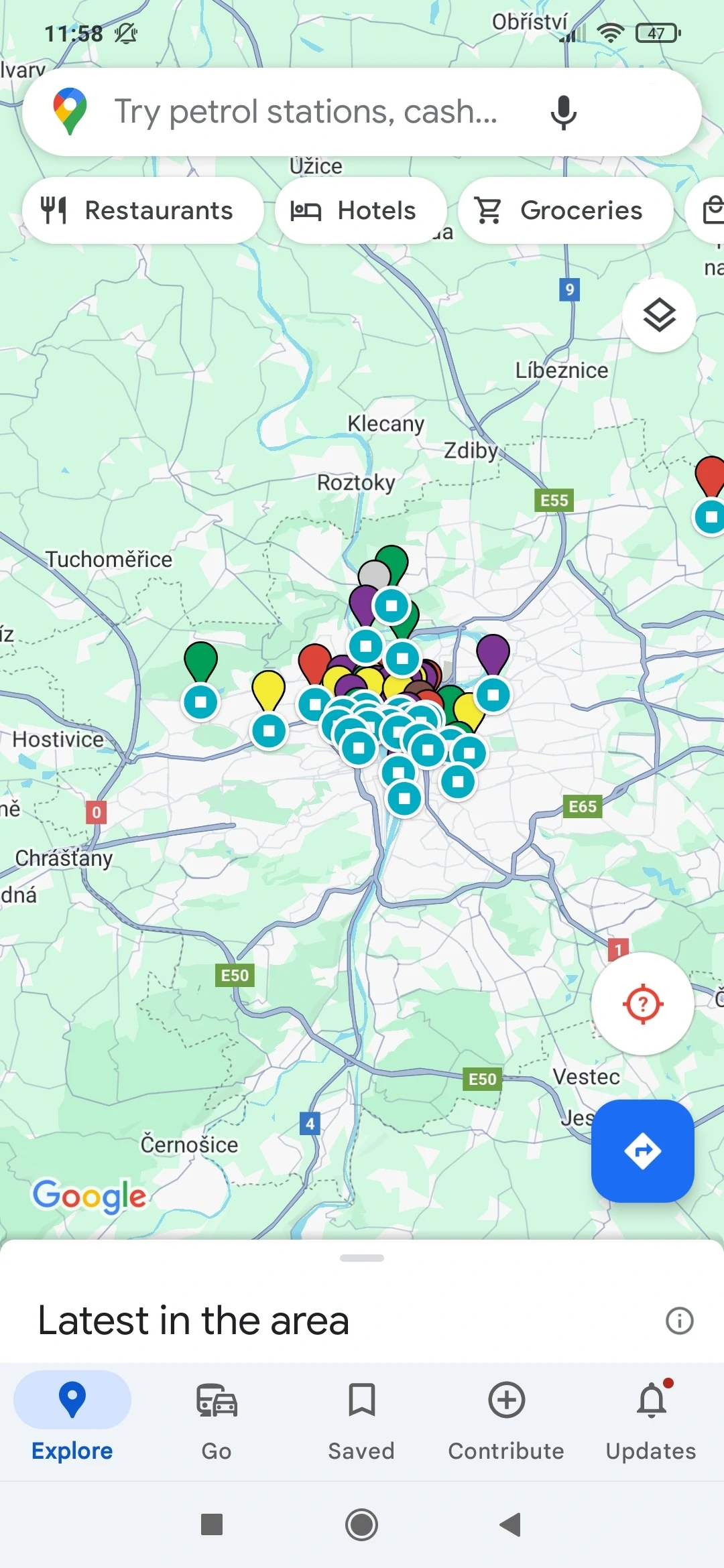
Image 24
6. Click on the blue circle item in the list to access the information provided by Google.
Image 25
7. Click Save to add the list item to a new or existing list.
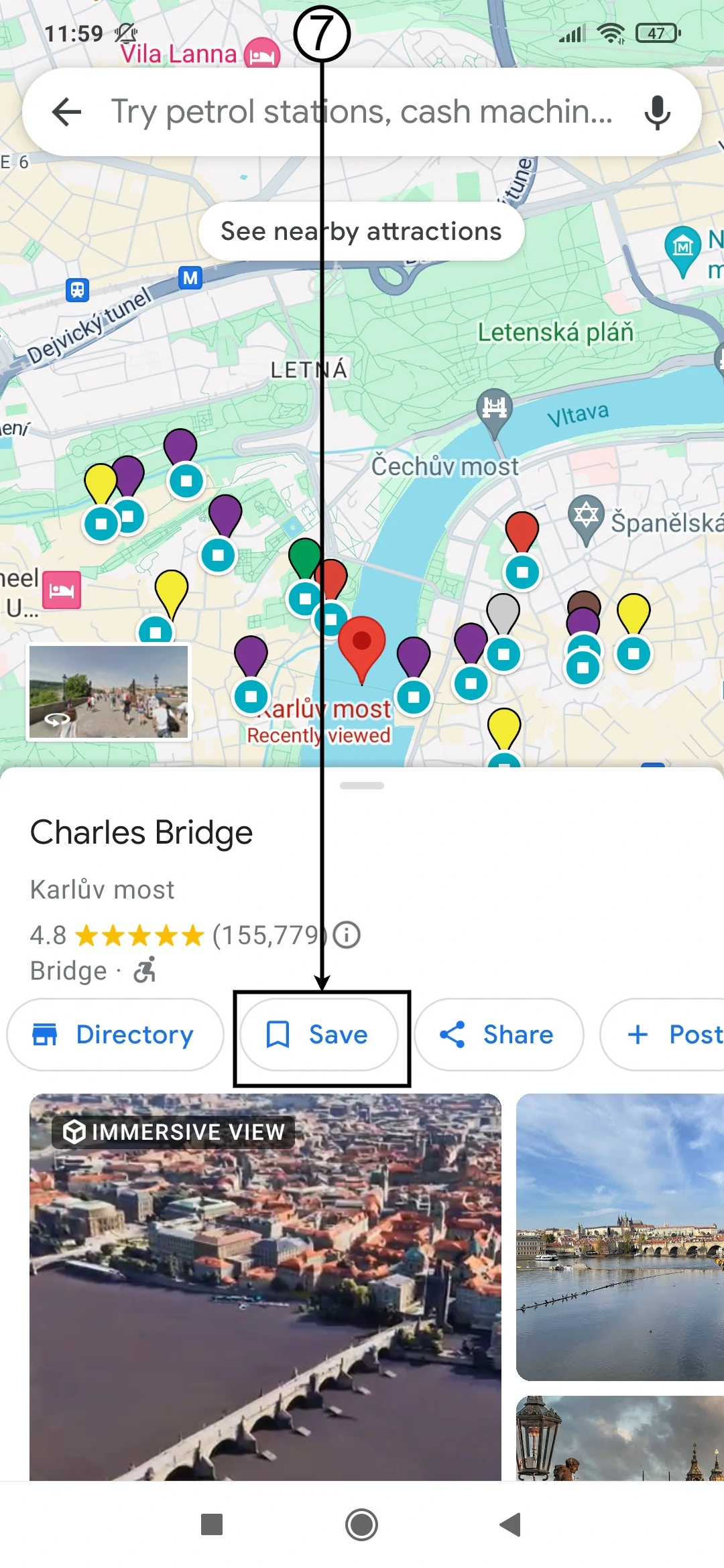
Image 26
Feel free to save the item to any list you prefer.
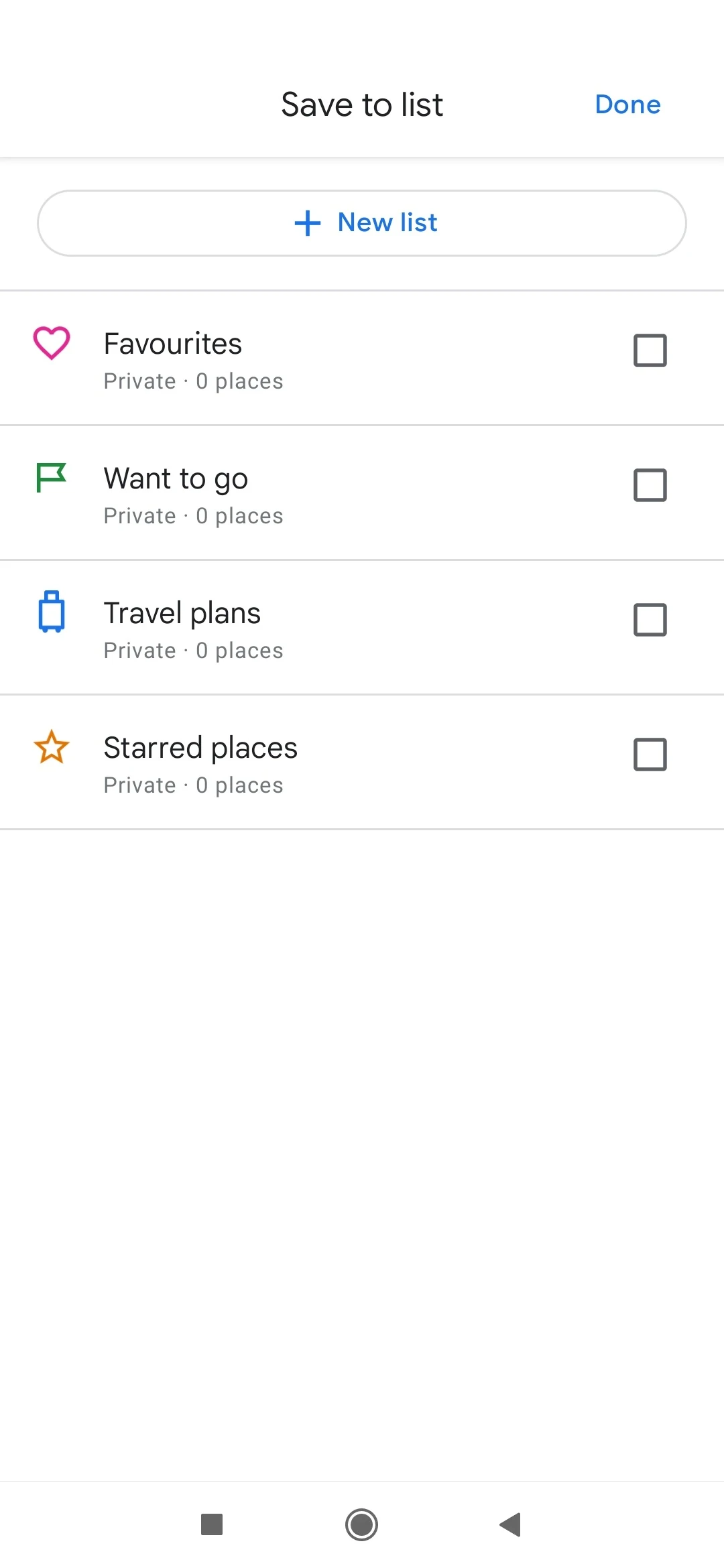
Image 27
8. Click on the placemarker on the Virtual Map.
9. Then, click on More info to view additional information about it.
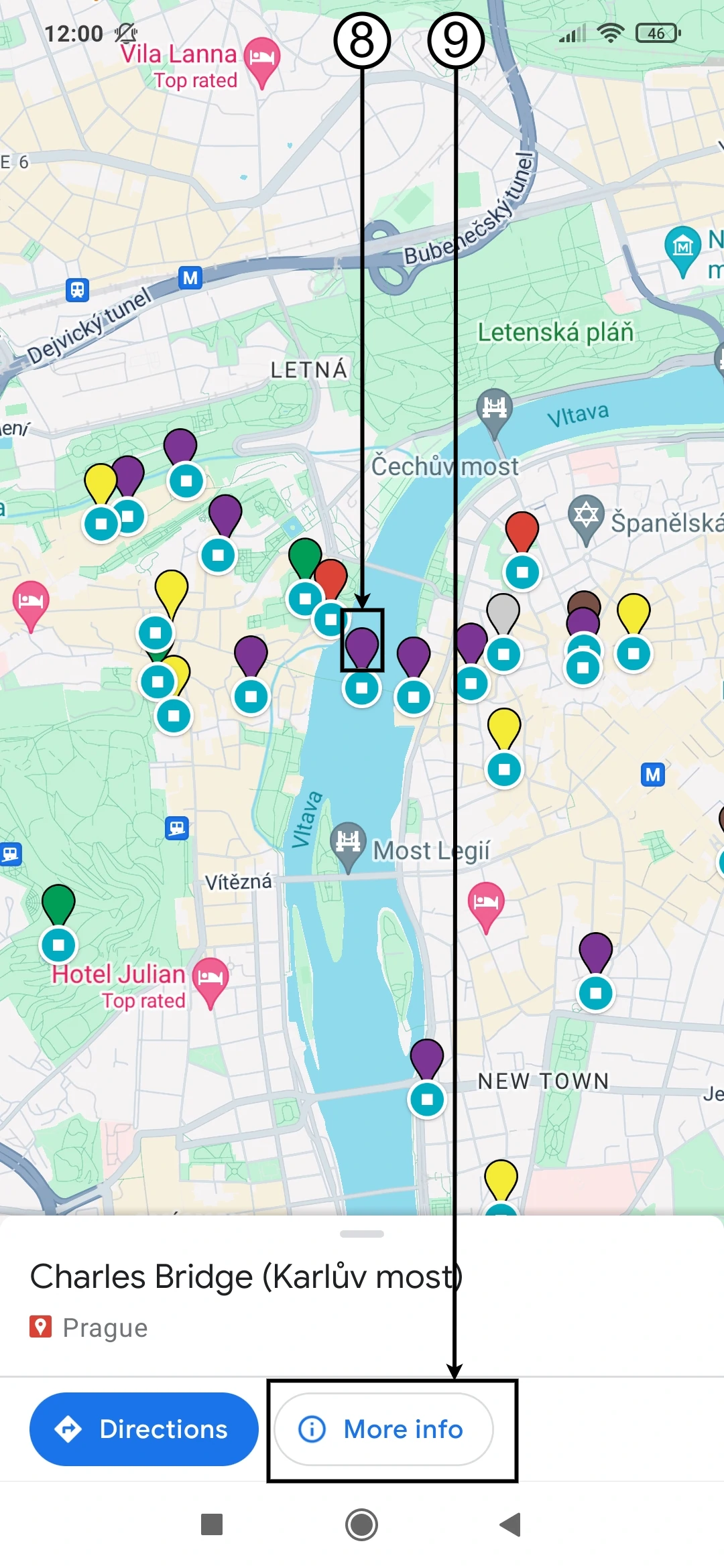
Image 28
10. Click on VIEW MAP LEGEND to see the objects on the Virtual Map.
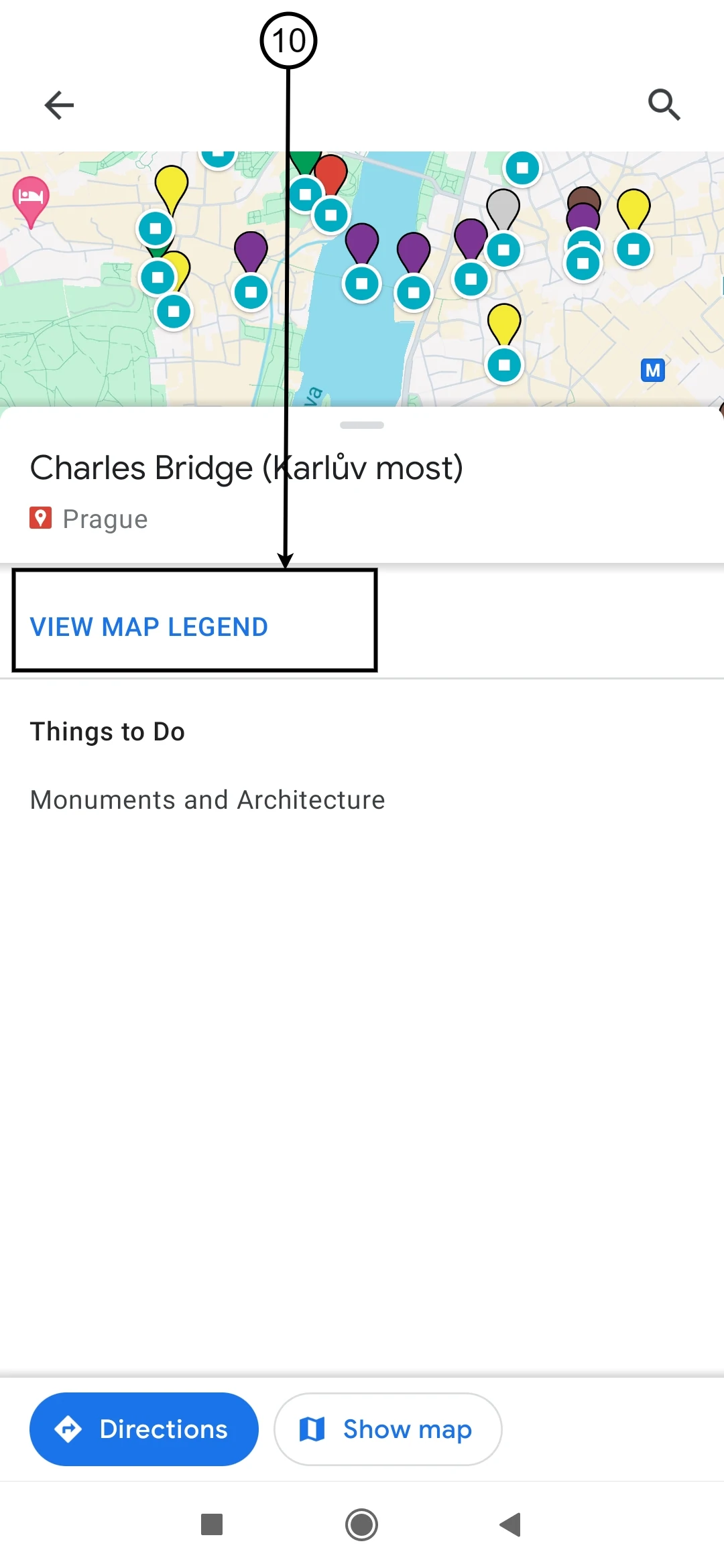
Image 29
You can activate or deactivate layers on the Virtual Map using the checkboxes next to each layer.
Image 30
Attachments